Onboarding Steps for Future Forward Labs
1. The student should follow the steps outlined here to onboard and sign-in to our student portal
Go to https://student.futureforward.app/ in your browser
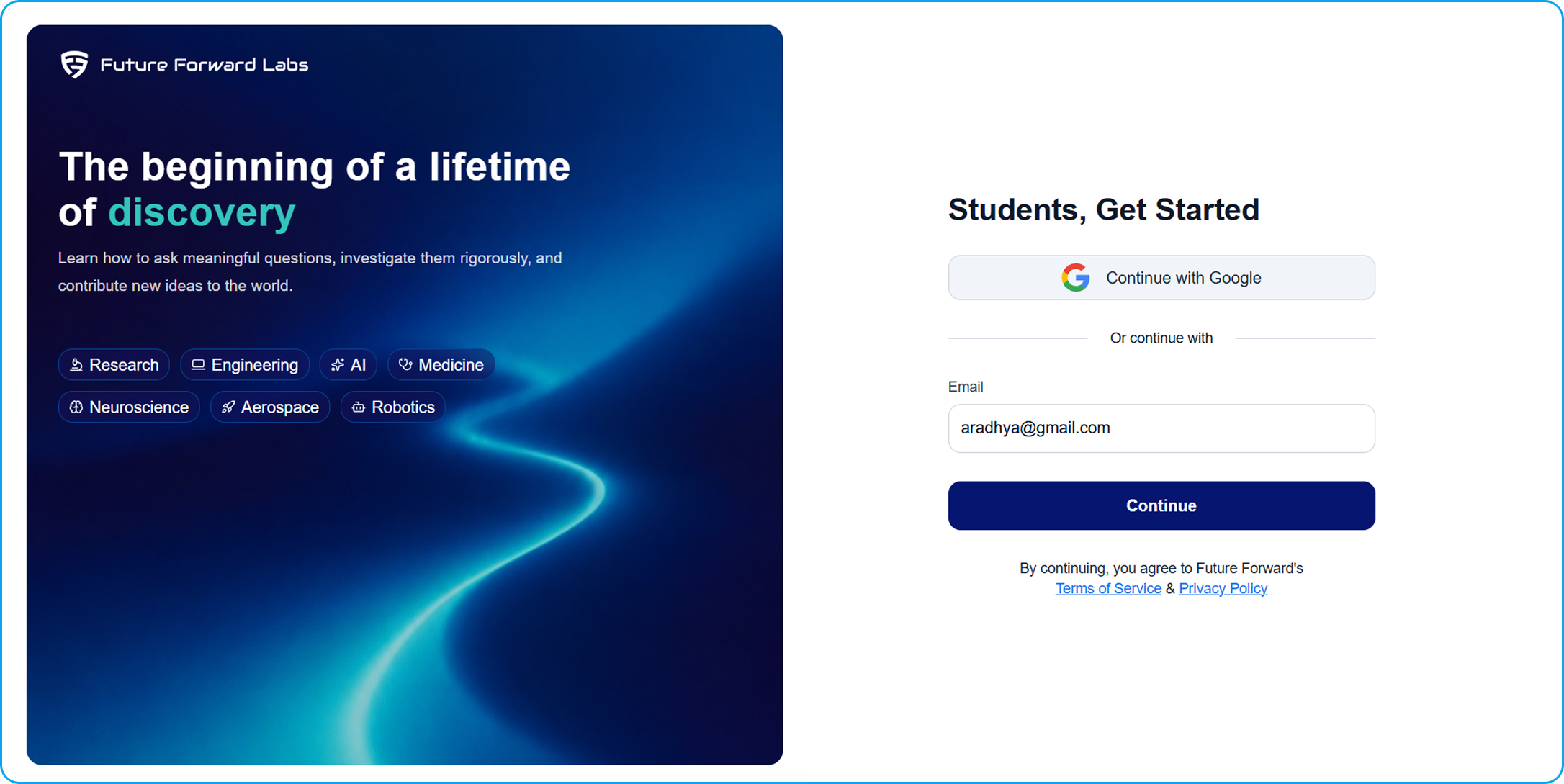
- •Choose "Continue with Google" or sign up using another email address. Please note – this should be an email address that the student regularly uses
- •If you're using another email, a sign-in link will be sent to you.
- •If you don't see it, check your Spam or other folders and mark this email as "Not spam."
- •Bookmark this login URL for future use
2. Parents should sign up for the parent portal to enable in-product chat communication for themselves and the student, with your mentoring team
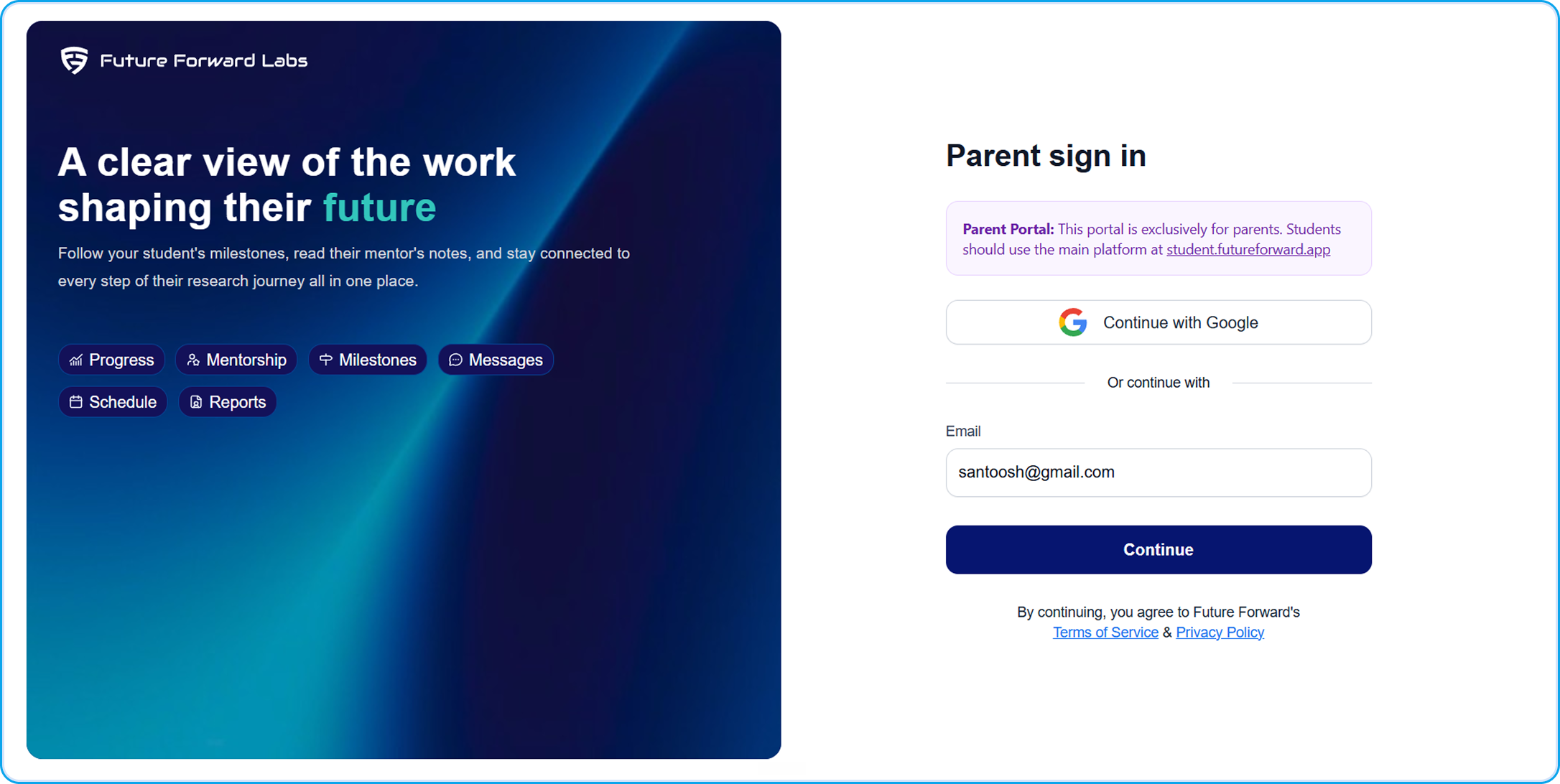
Go to the parent portal ( https://parent.futureforward.app/login ) to sign-up, AFTER the student has signed-up with steps mentioned above. Please note – this should be a be an email address that the parent regularly uses
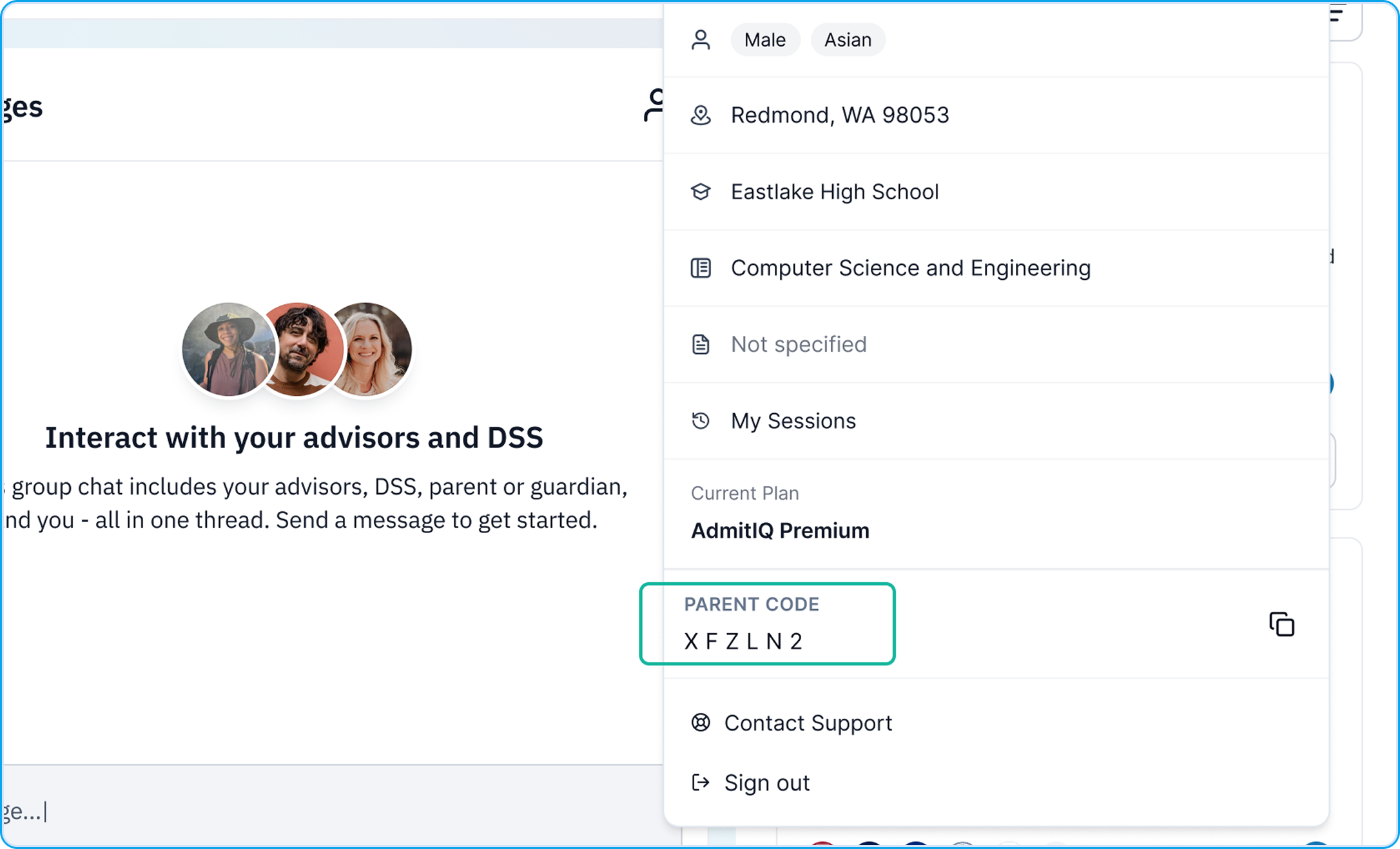
- •The student’s portal will have a unique student code; enter that in the parent portal to get access to your student’s details in the portal and messaging. See figure below for where to find the code in the student portal.
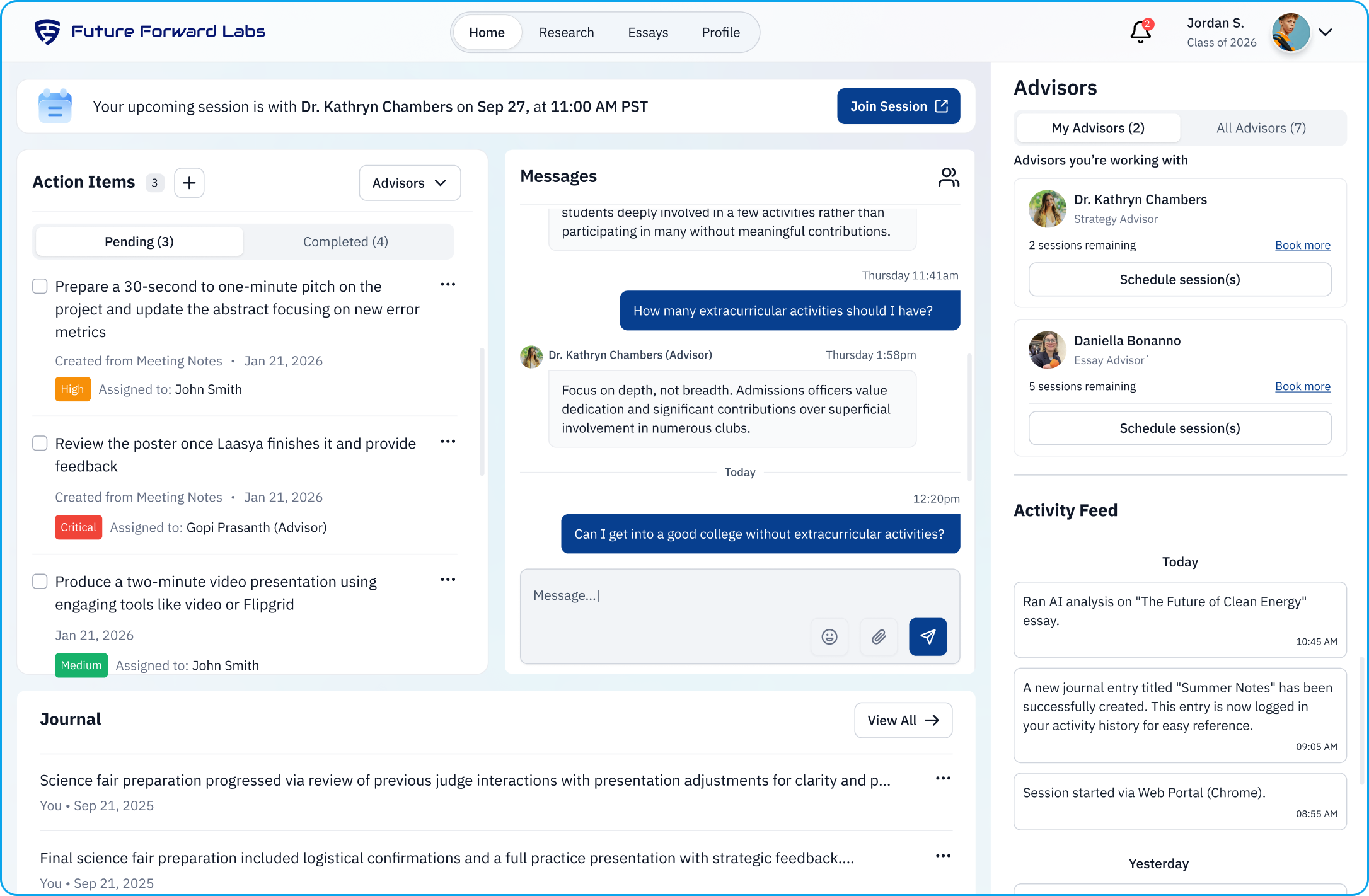
After both have signed up and the student has completed step#4, please send us a message from within the portal saying “Signed up” and we will assign their advisor/mentor for scheduling sessions.
3. Please note a few important things about session scheduling:
- •All scheduling should be done from within the portal
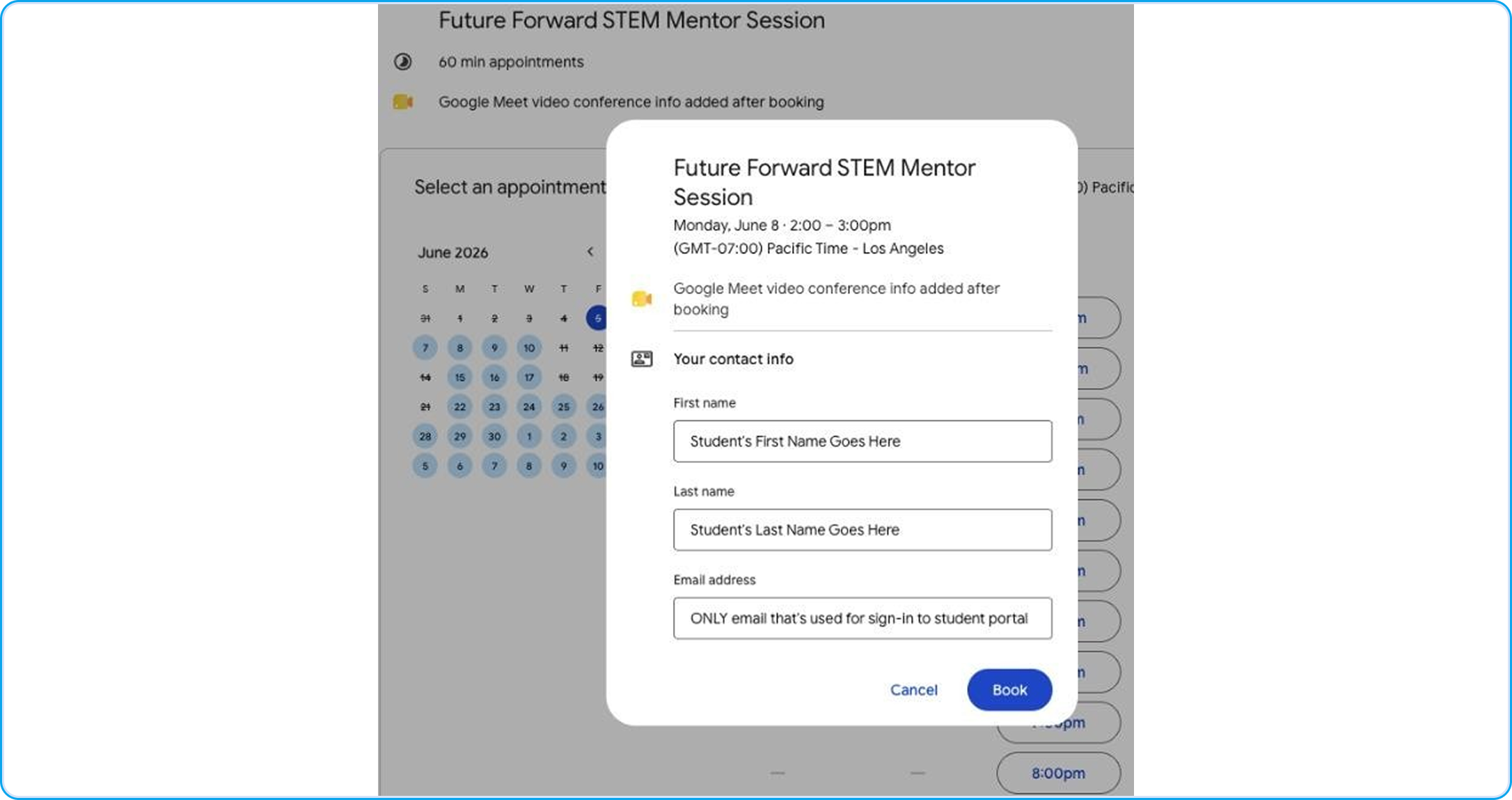
- •When scheduling, make sure to enter the email id that was used to sign-in to the student portal (see figure below). If any other email is used, that session will not take place.
•In case the student needs to re-schedule a session, they should follow these steps: https://www.futureforward.app/help/session-rescheduling/
If needed, re-scheduling should be done with more than 24 hours of notice; any rescheduling that’s done with less than 24 hours notice is invalid and that session is counted as completed.
•No shows - if a session is scheduled and the student doesn’t join for 10 mins from starting time, the mentor will drop off and the session count is deducted.
Once you’ve signed-up on the web portals, download and sign-in to the mobile apps, using the instructions give here: https://drive.google.com/file/d/1l00PJqBiRl-EpahSnhATw1H7bAZhSspV/
4. From here on, all communication with Future Forward Labs will be through the messaging tool in the portal with mentors or any support that you may need.